




Screen sharing: how to share content and collaborate in meetings
Learn what screen sharing does, when it supports real-time collaboration, and what to consider for privacy and accessibility.


Screen sharing is when you share your computer or mobile device screen, application, or selected content with other people in real time. It allows you to share a visual reference during a presentation, demonstration, document review, or collaborative task.
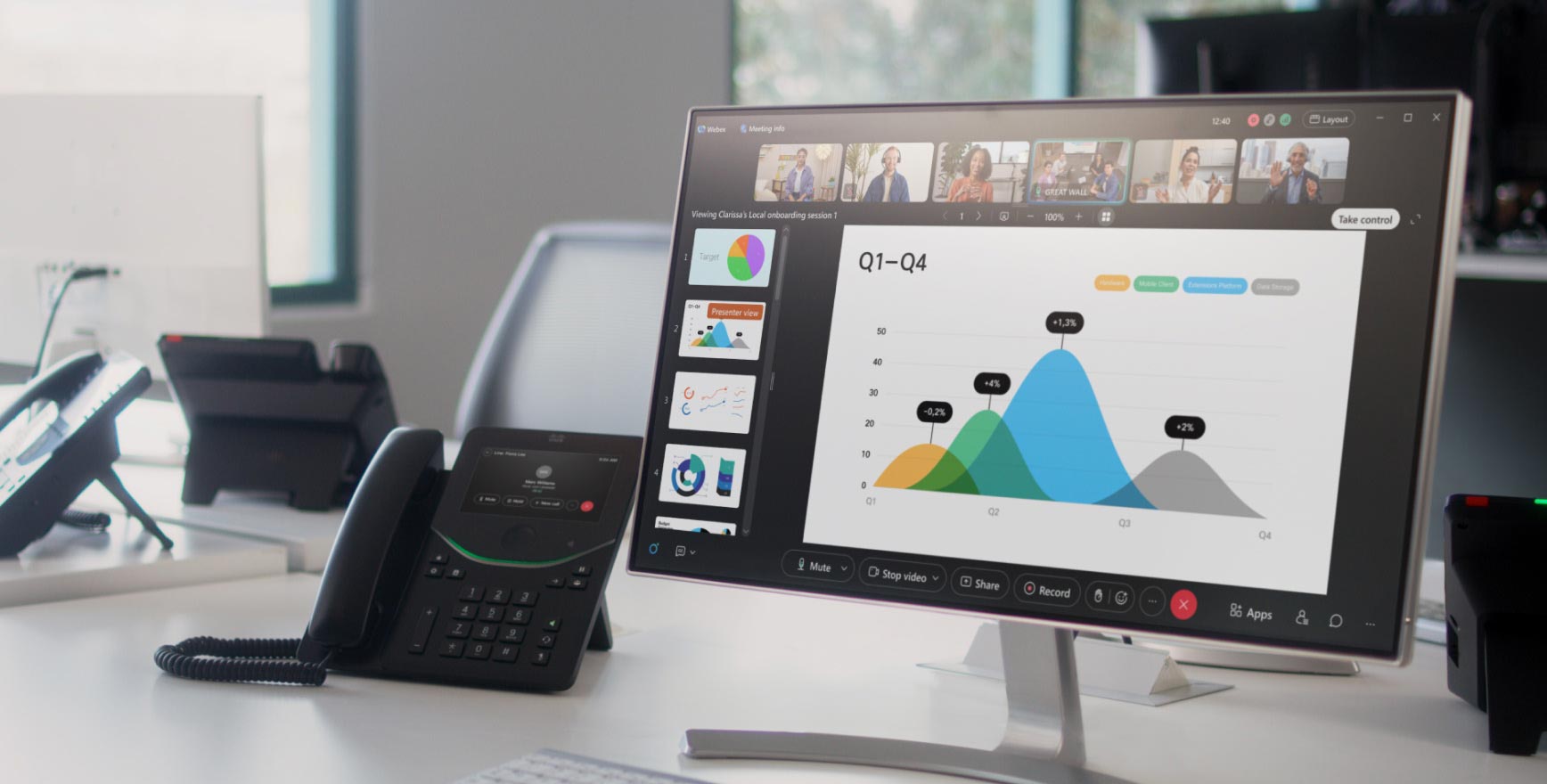
A screen share is different from sending a file because viewers see the content as the presenter displays it, rather than opening an independent copy. It’s also different from remote control, which gives someone else permission to interact with a device or application.
What is screen sharing?
Depending on the platform, people can share an entire screen, a specific application or file, or another selected view. The presenter can then explain the material as participants follow along.
Why people use screen sharing
Screen sharing helps people explain ideas, review work, and solve problems together. Common reasons to use it include:
- Make complex ideas easier to understand. Show a chart, design, or workflow while explaining how it works.
- Get feedback in the moment. Walk through a draft or presentation so others can ask questions and suggest changes.
- Troubleshoot problems together. Show an error or unexpected behavior so someone can see the issue firsthand.
- Demonstrate a product or process. Show how software works or walk through a task during a demo, onboarding session, or training.
- Keep everyone focused on the same information. Direct attention to a specific slide, document, or result as the conversation progresses.
- Make decisions with shared context. Compare options, review data, and discuss trade-offs while everyone sees the same material.
- Collaborate across locations. Bring remote participants into reviews and working sessions with a shared view of the content.
- Reduce back-and-forth explanations. Point to the exact detail you mean and address questions as they arise.
Screen sharing best practices


What to consider when sharing
Share only the content your audience needs, and check that your personal notifications or unrelated windows won’t display and expose private information. Describe important visual details aloud, allow time for participants to follow, and provide an accessible copy when people need to review the material separately.
Screen sharing in Webex
Webex lets you choose what participants see, adjust sharing quality to suit the content, and collaborate directly on shared material.
- Control what you share: Present your entire screen, an application window, a file, or a selected portion of your screen. You can also share camera content or play computer audio without sharing your screen.
- Optimize sharing quality: Prioritize clarity for text and images or smoother playback for video and motion. On supported desktop apps, Webex can automatically adjust optimization based on the content.
- Present with immersive share: Place your camera video in front of shared content so participants can see you alongside the material you’re explaining.
- Preview what you share: Use the content picker to identify the screen or application window you want to present before you start sharing.
- Annotate shared content: Draw, type, and point to specific details during a review. Annotation permissions let presenters manage who can contribute.
- Manage who can share: Hosts and cohosts can turn off content sharing for other participants when they need to keep a presentation focused.
Available features vary by device, app, and meeting platform. For instructions and supported options, see Share content in a meeting.


